How to Create a Free Online Store in 5 Minutes
Create a free online store in 5 minutes on LearnCan: what to prepare, the steps minute by minute, your first product and how to show up on Google search.
Think opening an online shop takes weeks, a developer and a budget? In this guide we show how to create a free online store in 5 minutes on LearnCan, with no code and no subscription. You’ll learn what to prepare before you start, the steps minute by minute, how to add your first product, and what to do after creation so customers can find your store on Google.
Quick answer: prepare the product photo, name and price, open the free store creation page, choose what you sell, write the store name and tagline, add the logo and cover, then your first product. The store goes public after the administration approves it.
Can you really create an online store in 5 minutes?
Yes, if you prepare the essentials in advance. LearnCan’s store creation form is short: one step to choose what you sell and one for the name, tagline, images, currency and language. What usually takes time isn’t the platform but hesitating over the name or hunting for a photo. So we start with preparation, then click “create” already knowing every answer.
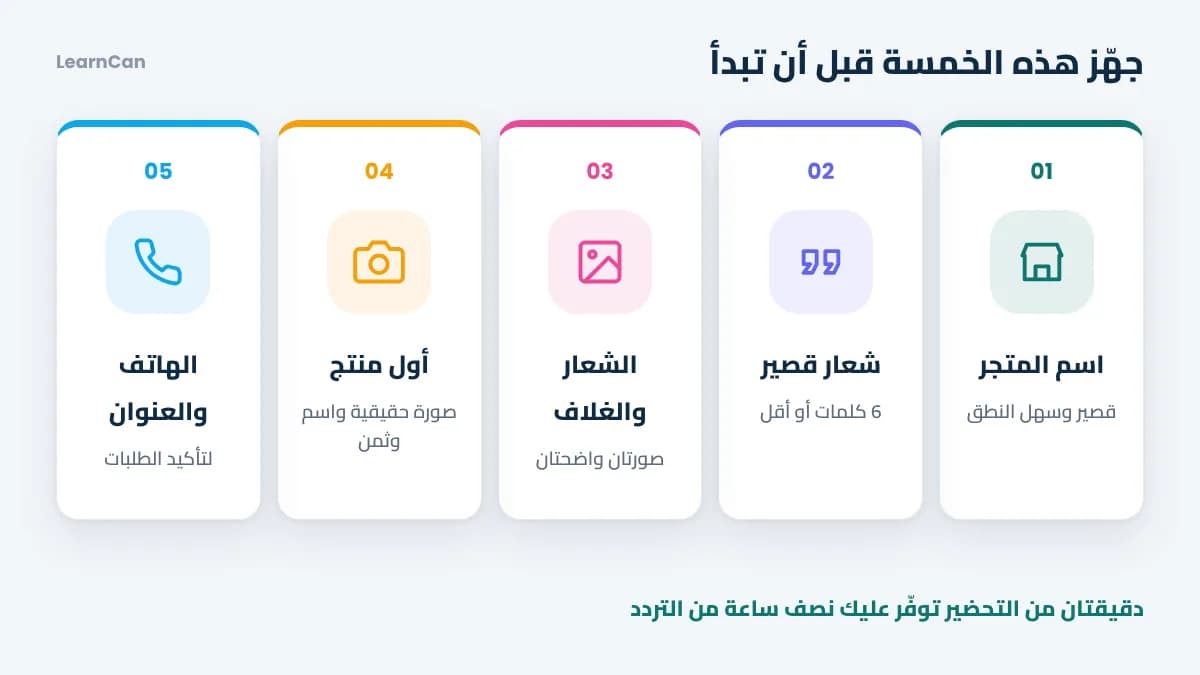
What to prepare before you start (two minutes)
- Store name: short, easy to say, and ideally hinting at what you sell.
- A short tagline: six words or fewer explaining the benefit, such as “Phones and accessories at fair prices”.
- Logo and cover image: you can start simple and change them later.
- Your first product: a real, clear photo, a name and a price.
- A phone number to confirm orders, and your address if you sell delivered products.
No name idea? Ask an AI assistant for ten suggestions, as explained in our guide to a free online store with AI.
Free online store in 5 minutes: the steps minute by minute
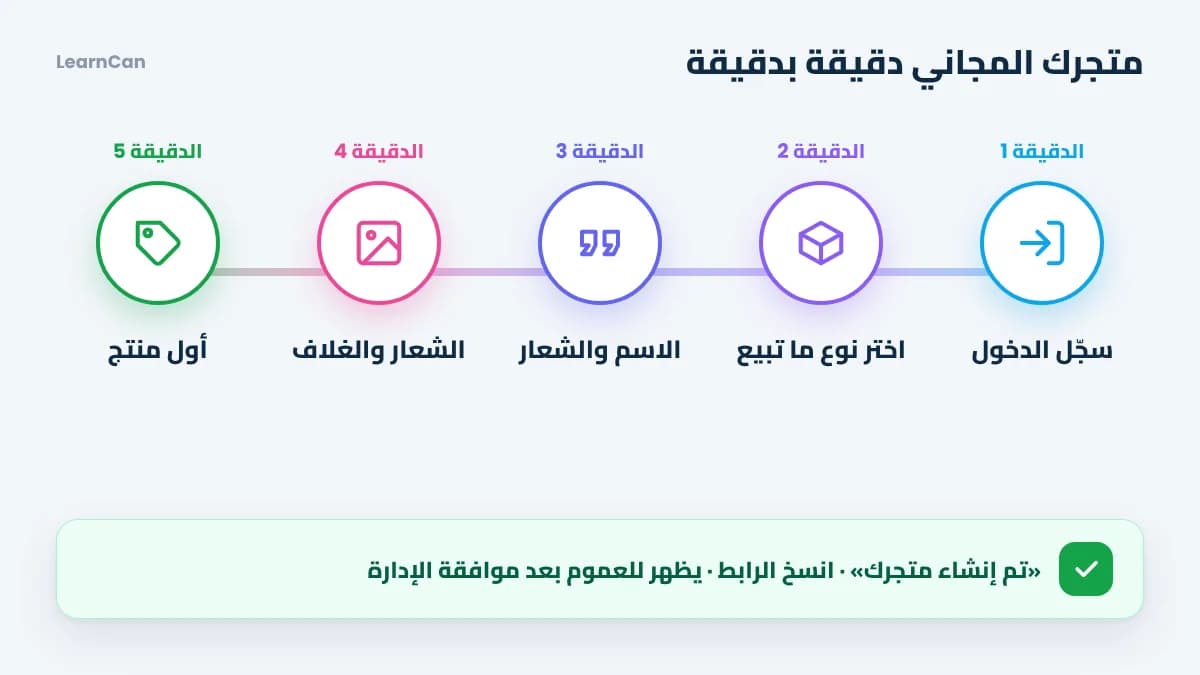
Minute 1: log in or create your account
If you already have a LearnCan account, just log in. If not, signing up is free with your email or a Google account, as shown in the guide to sign up for LearnCan.
Minute 2: choose what you sell
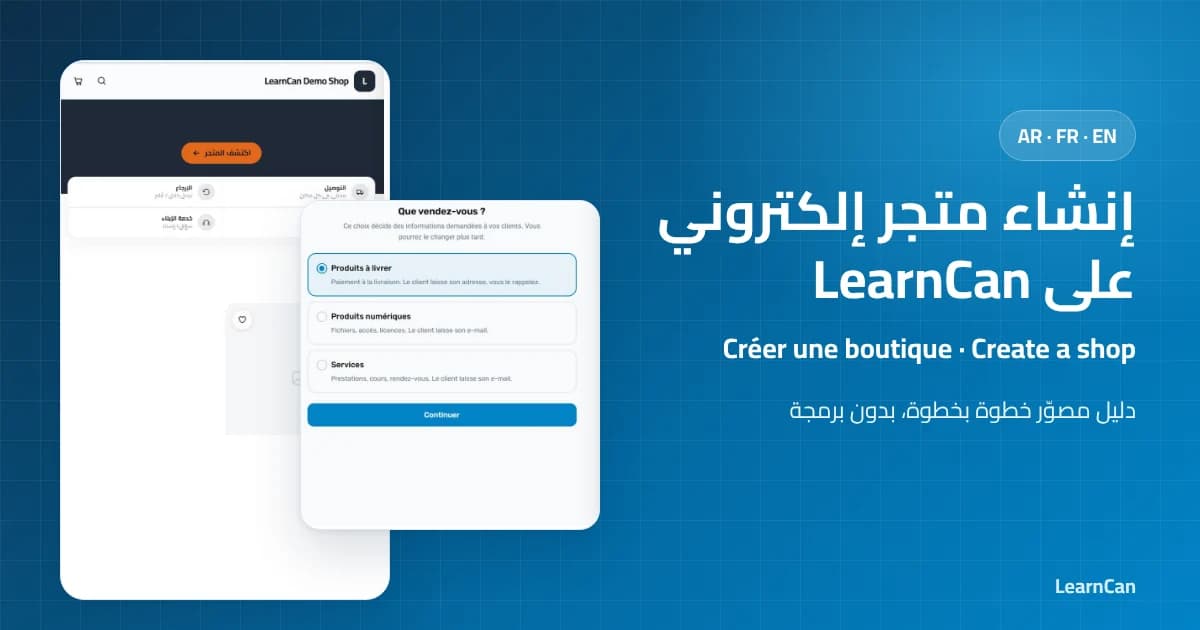
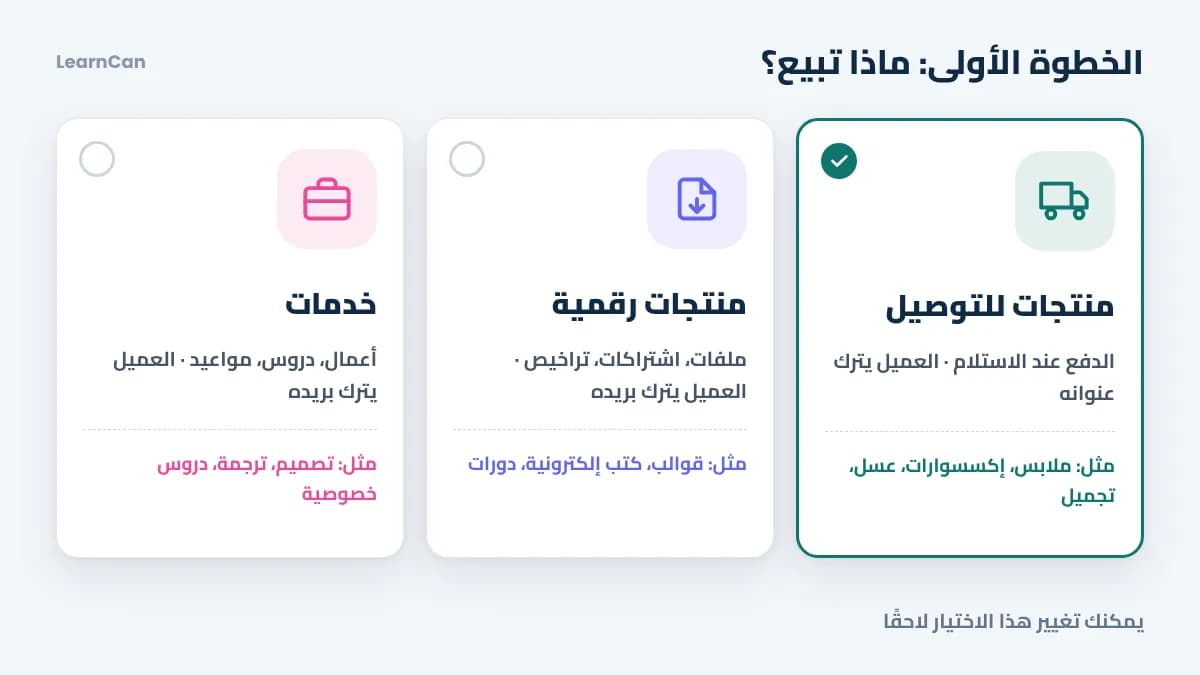
Open the store creation page. First question: what do you sell? This choice decides what information customers leave when they order, and you can change it later:
Type | Examples | What the customer leaves |
|---|---|---|
Delivered products | Clothing, accessories, honey, beauty products | Address and phone, cash on delivery |
Digital products | Files, templates, subscriptions, licenses | Email address |
Services | Design, lessons, appointments | Email address |
Minute 3: write the store name and tagline
Paste the name and tagline you prepared. Choose the currency and the store language, the one your customers will see. Add your phone number if you wish.
Minute 4: add the logo and cover image
Upload the logo and cover image. The cover is the first thing visitors see, so choose a clear picture of your products or your store’s mood. Then click “create store”: the message “your store has been created” appears with a link you can copy.
Minute 5: add your first product
With the add-products button, enter the product name and price and upload its photos. The first photo is the one shown in your storefront, so make it the clearest. You can add the description, options and offers later.
What comes after the five minutes?
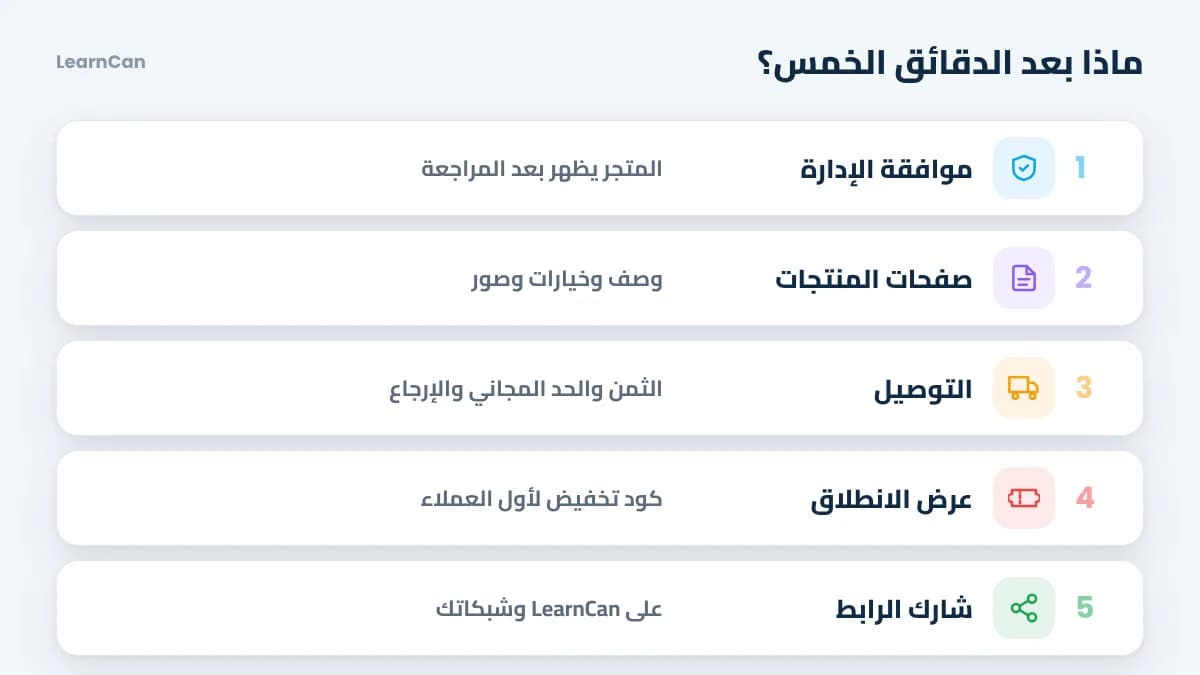
Your store exists, but success starts now. These steps turn an empty page into a store that sells:
- Wait for approval: your store goes public after review; meanwhile, add your other products.
- Complete your product pages: benefit-focused descriptions, color and size options, and quantity pricing if you want.
- Set up shipping: shipping price, free-shipping threshold and a clear return policy.
- Prepare a launch offer: a coupon for your first customers or a time-limited deal.
- Share the link: copy your store link and post it on your LearnCan account and your social networks.
To see every management screen in pictures, read the guide to create an online store on LearnCan.
How do you get your store on Google?
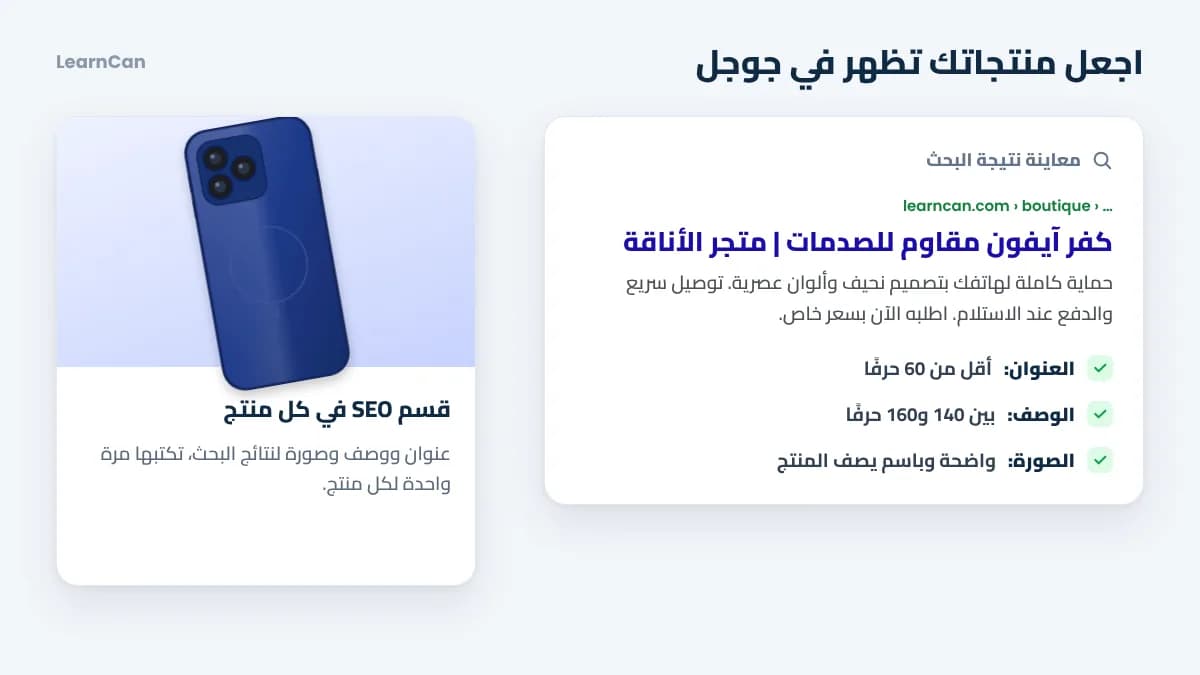
A store nobody finds doesn’t sell. Every product in your LearnCan store has an SEO section where you write a title, description and image for search results. Apply these simple rules:
- An SEO title under 60 characters that starts with the product name and a word your customer searches for, like “Shockproof iPhone case”.
- A description of 140 to 160 characters mentioning the benefit, the price or offer and cash on delivery.
- A clear image of the product on a simple background, with a file name that describes it.
- An original description for every product instead of copying the supplier’s text.
- Links from your content: share your products in posts and articles that explain how to use them.
To go further, read Google’s SEO Starter Guide and Google’s best practices for ecommerce sites.
Mistakes that stop a new store from selling
- Photos taken from the internet: customers want to see the product they will actually receive.
- A product with no margin: calculate every cost before pricing, and choose from our profitable ecommerce products.
- A one-line description: it doesn’t answer customers’ questions, so they don’t order.
- Unclear shipping: price and delivery time must be visible before the order.
- Waiting without marketing: a new store needs visitors; start with free content, then small ads.
FAQ
Is the store really free?
Yes. Creating the store and adding products on LearnCan is free, with no subscription or payment method required. All the details are in our guide to a free online store forever.
When will customers see my store?
After the LearnCan administration approves it. The link you copied will work for your customers as soon as it is approved, so use the waiting time to complete your products.
Do I need coding or design skills?
No. Everything is done with simple forms: you write the texts, upload the images and pick colors and options. There isn’t a single line of code.
How do customers pay?
In a store selling delivered products, customers pay on delivery and leave their address and phone number so you can contact them and confirm the order.
Conclusion
Creating a free online store in 5 minutes is easy when you prepare your information in advance: what you sell, the name and tagline, the images and your first product. The real work starts afterwards: strong product pages, clear shipping and steady marketing. Create your free store now, and if you are new to this, start with ecommerce for beginners, then the plan to learn e-commerce from scratch.