LearnCan Features: A Visual Tour of the Free Platform
Explore all LearnCan features with screenshots: courses by level, a lesson player, articles and PDFs, a community wall, friends, an online store and settings.
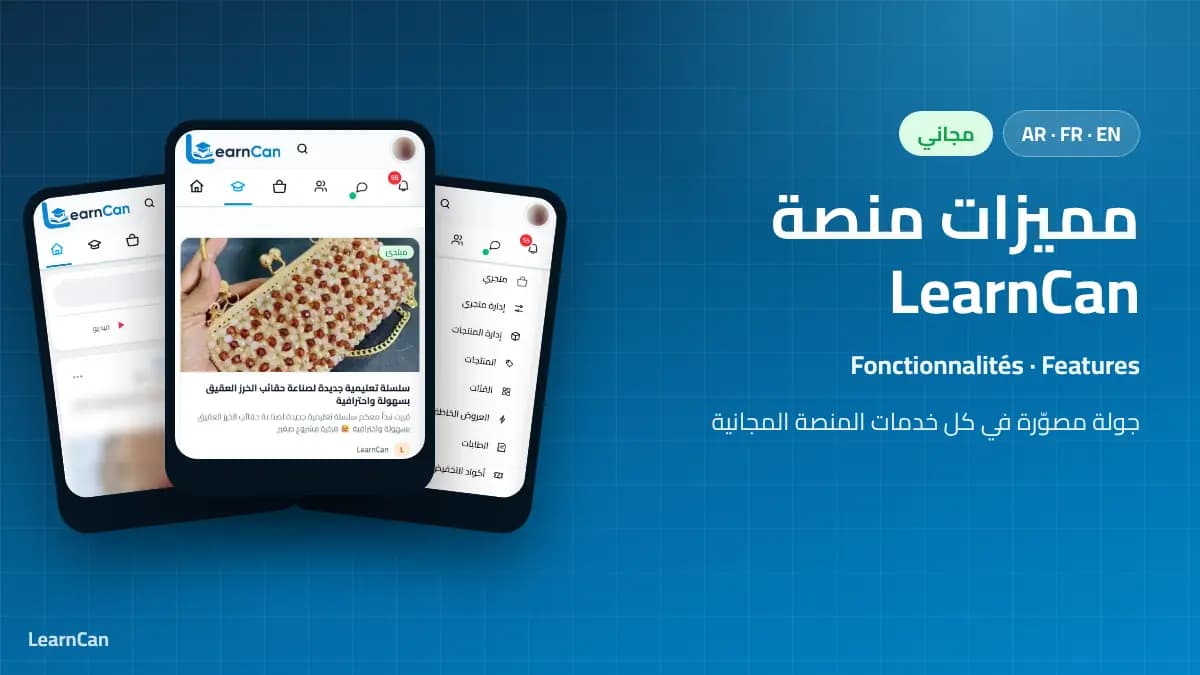
Looking for one place to learn, read practical guides, connect with people who share your interests and even sell your products? This guide walks you through all the LearnCan features one by one, with real high-definition screenshots taken on the mobile version. Best of all, LearnCan is a free platform: signing up and using these tools requires no subscription.
What is LearnCan, and is it really free?
Yes, LearnCan is a free learning platform and community. One account gives you video courses, illustrated articles, a social wall to post and interact, a friends and following system, and your own online store. The site works in Arabic, French and English, on both phone and computer, with nothing to install.
LearnCan features at a glance
Before the details, here is a quick table summarising each area and what it does for you:
Feature | What it gives you | Price |
|---|---|---|
Courses | Video lessons sorted by level | Free |
Lesson player | Progress, reviews and resources | Free |
Articles | Illustrated guides and PDFs | Free |
Community wall | Text, photo or video posts | Free |
Friends | Search, follow, block | Free |
Store | Products, orders, discount codes | Free |
Settings | Profile, password, privacy | Free |
1. Courses sorted by level
The Courses area is the heart of the platform. Courses appear as clear cards: a cover image, a title, a short summary and the name of the author. At the top you find the courses you follow, then the categories, then a “By level” menu that shows only what suits you: beginner, intermediate or advanced.
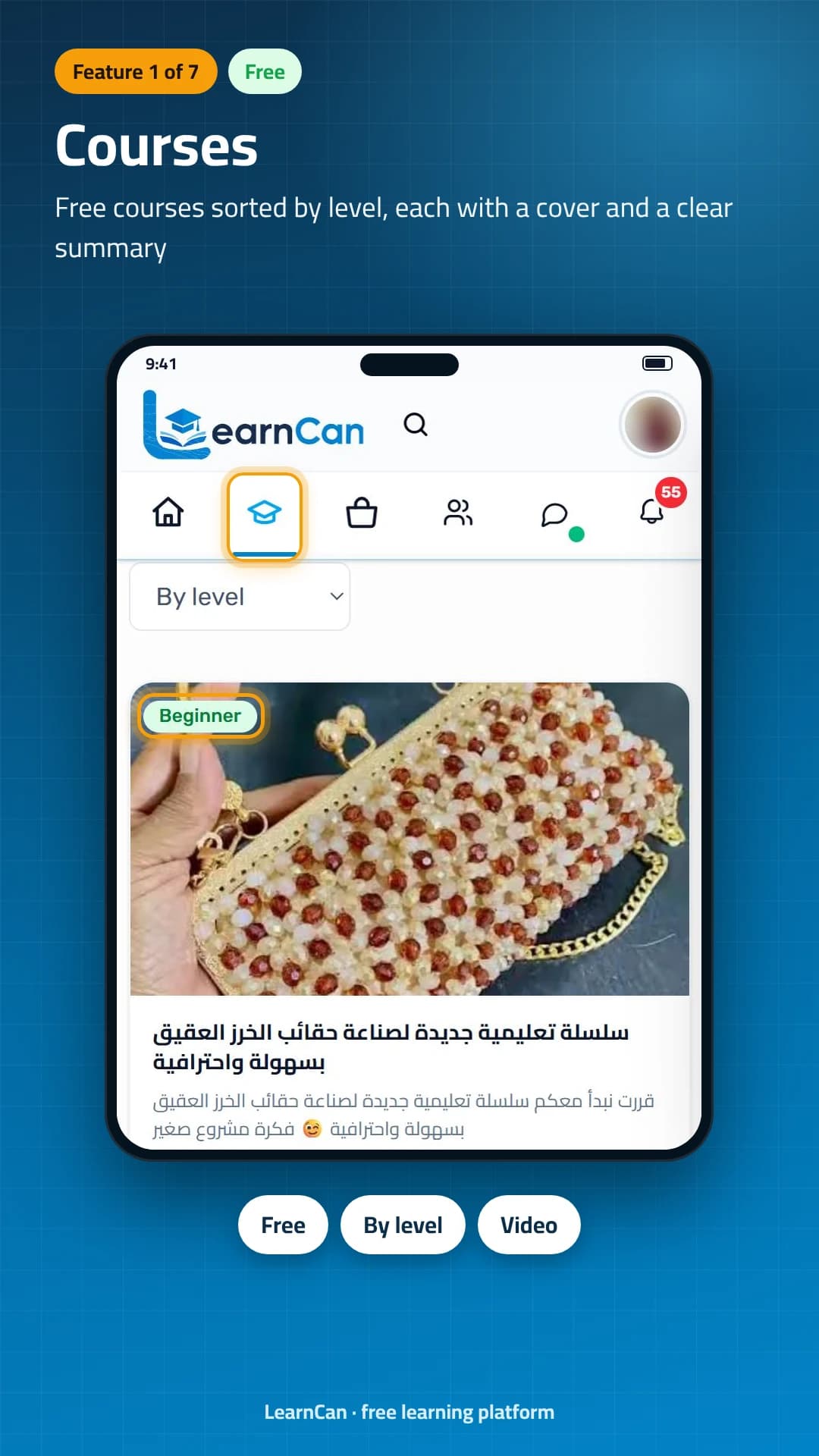
- Pick the right level: if a topic is new to you, start with “Beginner”.
- Follow a course: it then appears at the top of the page so you can get back to it fast.
- Try it now: open the courses page and test the filter.
2. The lesson player and your progress
When you open a course you land in the lesson player: the video at the top and, right below it, a button to mark the lesson as done. Next comes the “Overview” card with the number of lessons, the duration and your progress percentage, then learner “Reviews”, attached “Resources” and the full “Course content”, lesson by lesson.
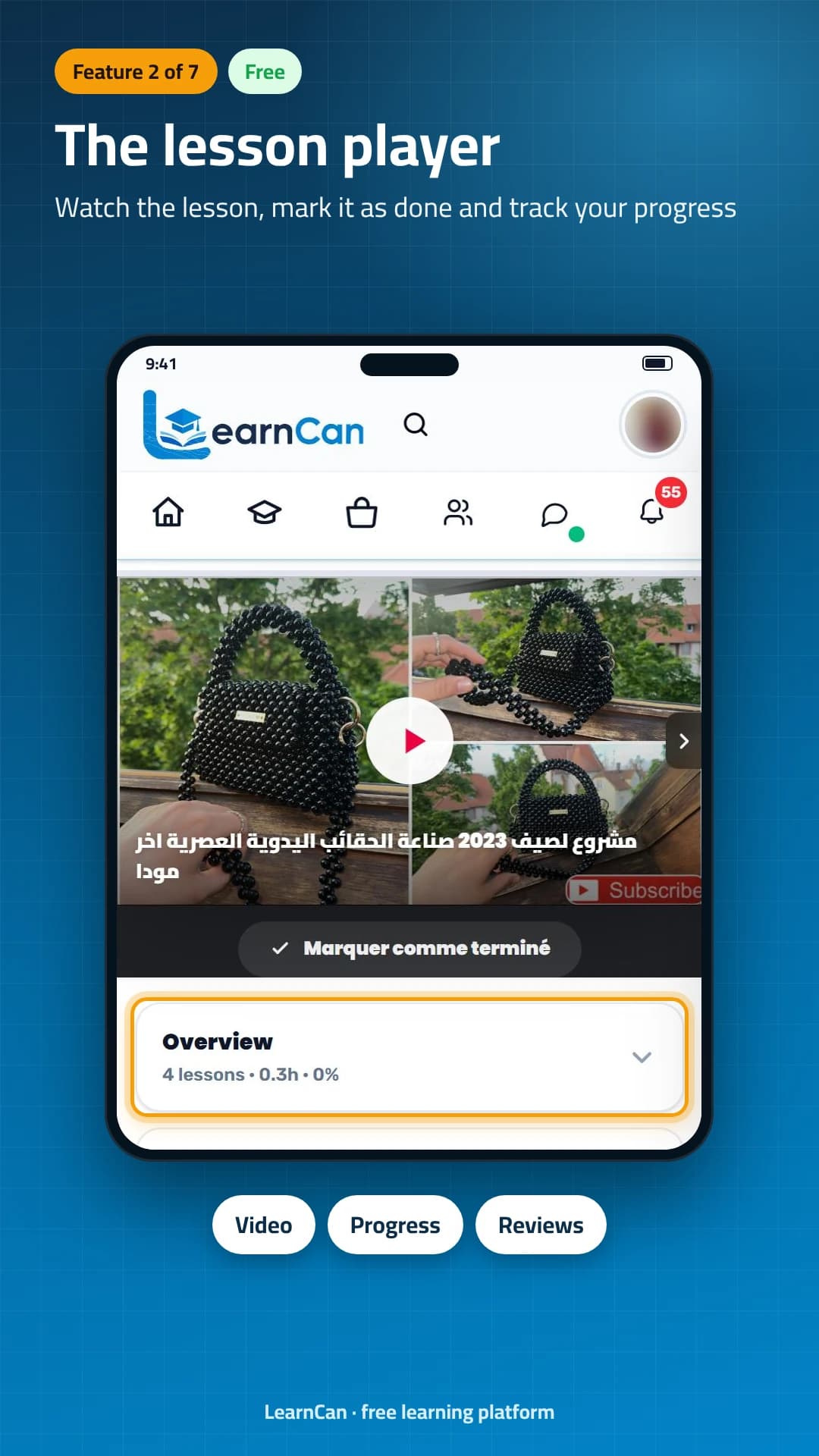
That percentage keeps you going: every finished lesson brings you closer to the end, and you always know where you stopped.
3. Illustrated articles and guides
Alongside courses, LearnCan publishes practical step-by-step articles with real screenshots, some of them with a free PDF you can download and read offline. They are available in Arabic, French and English and cover Excel, e-commerce, English for beginners and video editing.
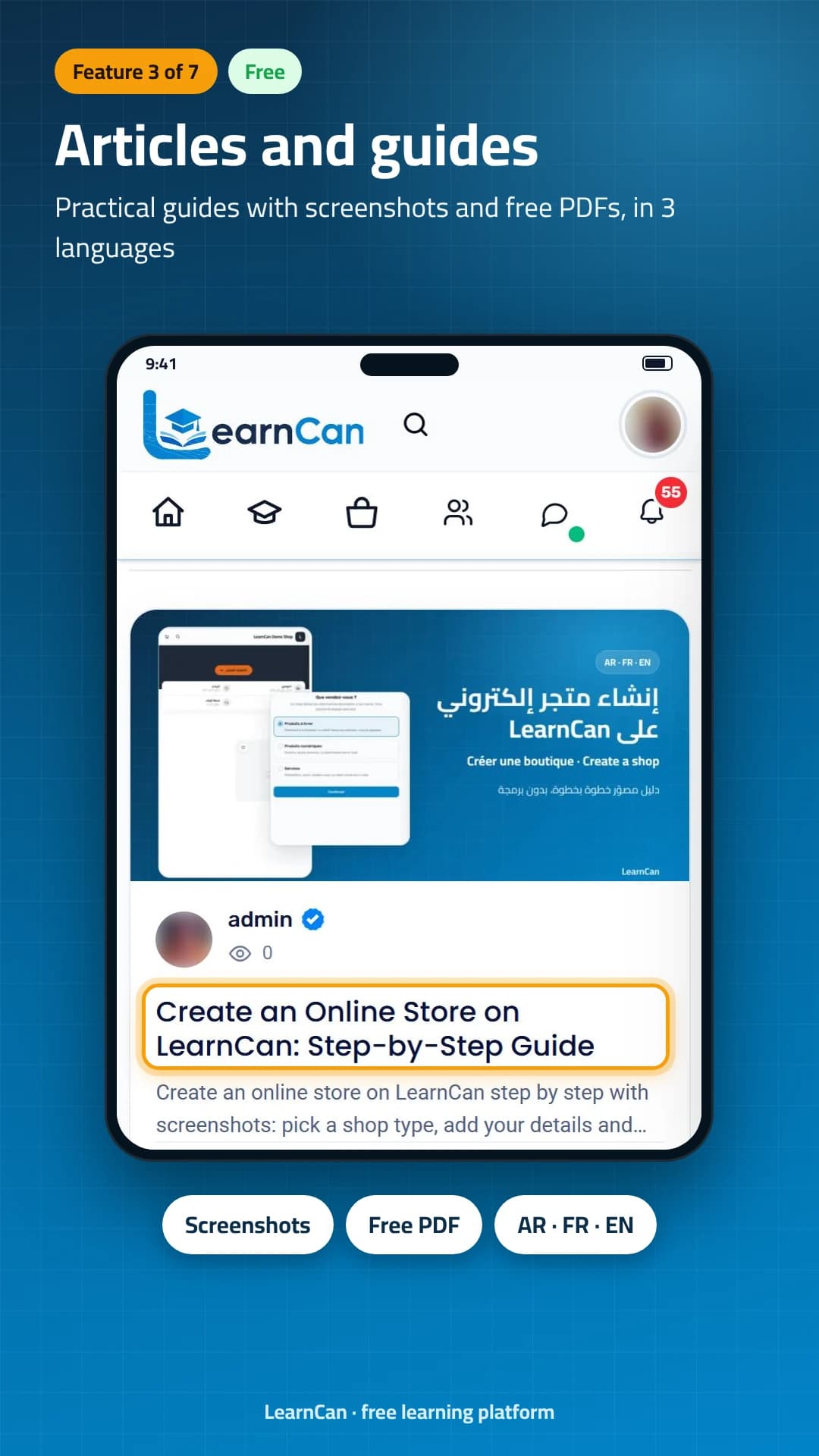
You will find every guide on the latest articles page, a great starting point if you prefer reading to video.
4. The community wall
The wall is your home page once you are signed in. From the “What’s on your mind?” box you write a post, add a photo or a video and publish it for the community. Under each post you can react and comment: ask questions, answer others and share what you know.
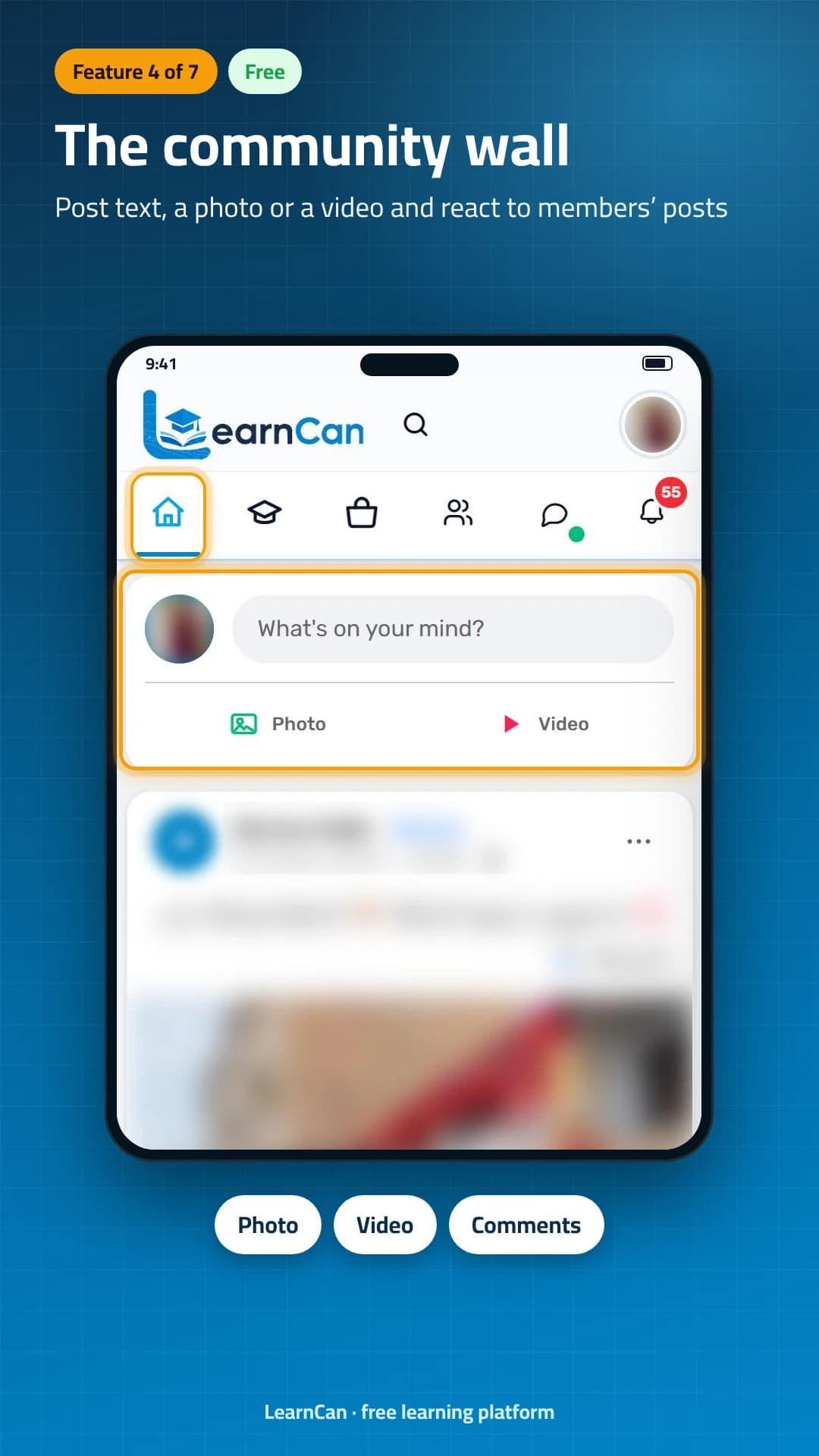
Note: members’ posts are blurred in the picture to respect their privacy. In your account you will see them in full.
5. Friends, following and blocking
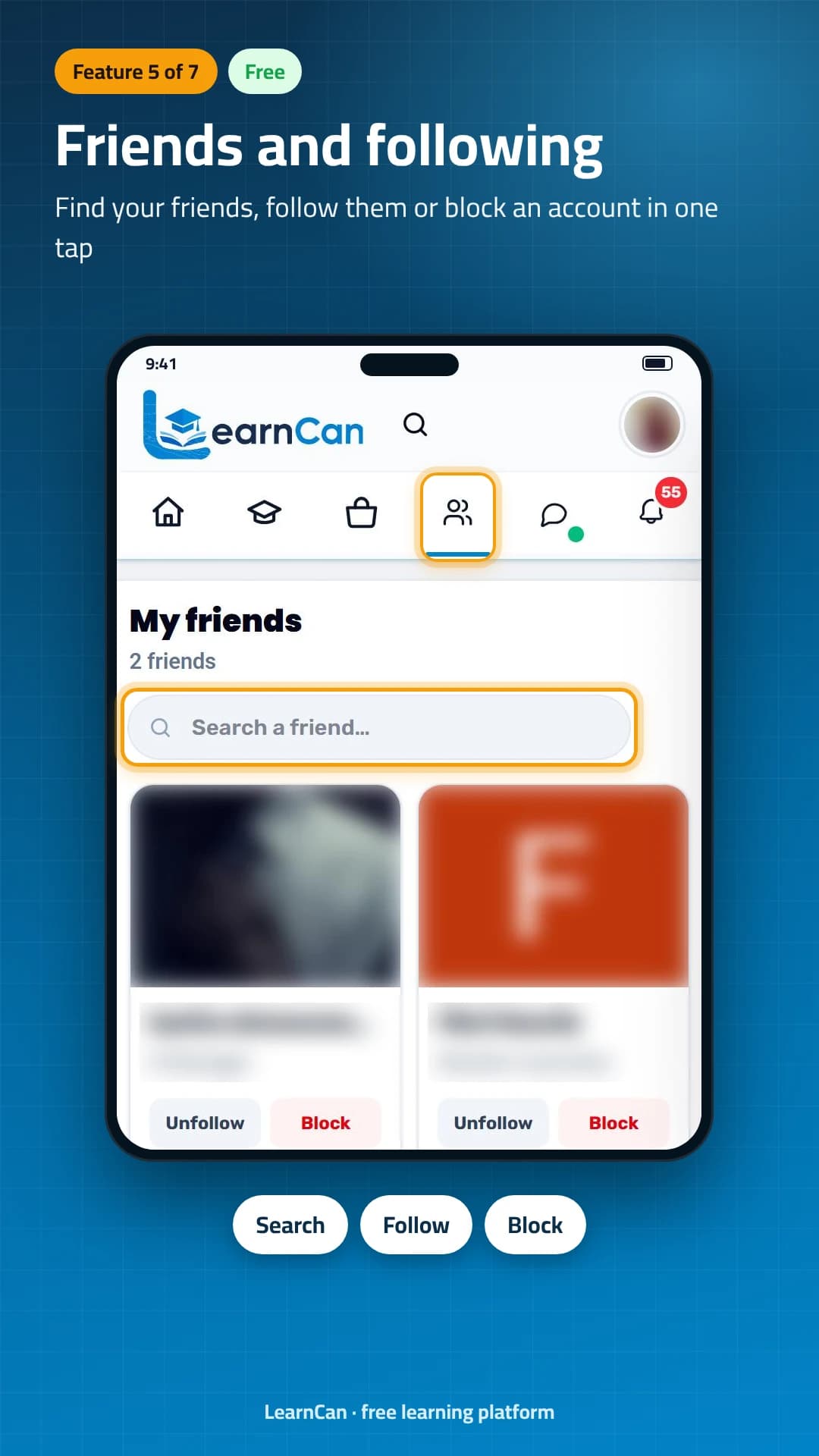
The people icon opens “My friends”. At the top, a search bar finds any friend in seconds; below, each card has two clear buttons: “Unfollow” and “Block”. You stay in control of who sees you and who can reach you.
6. A free online store
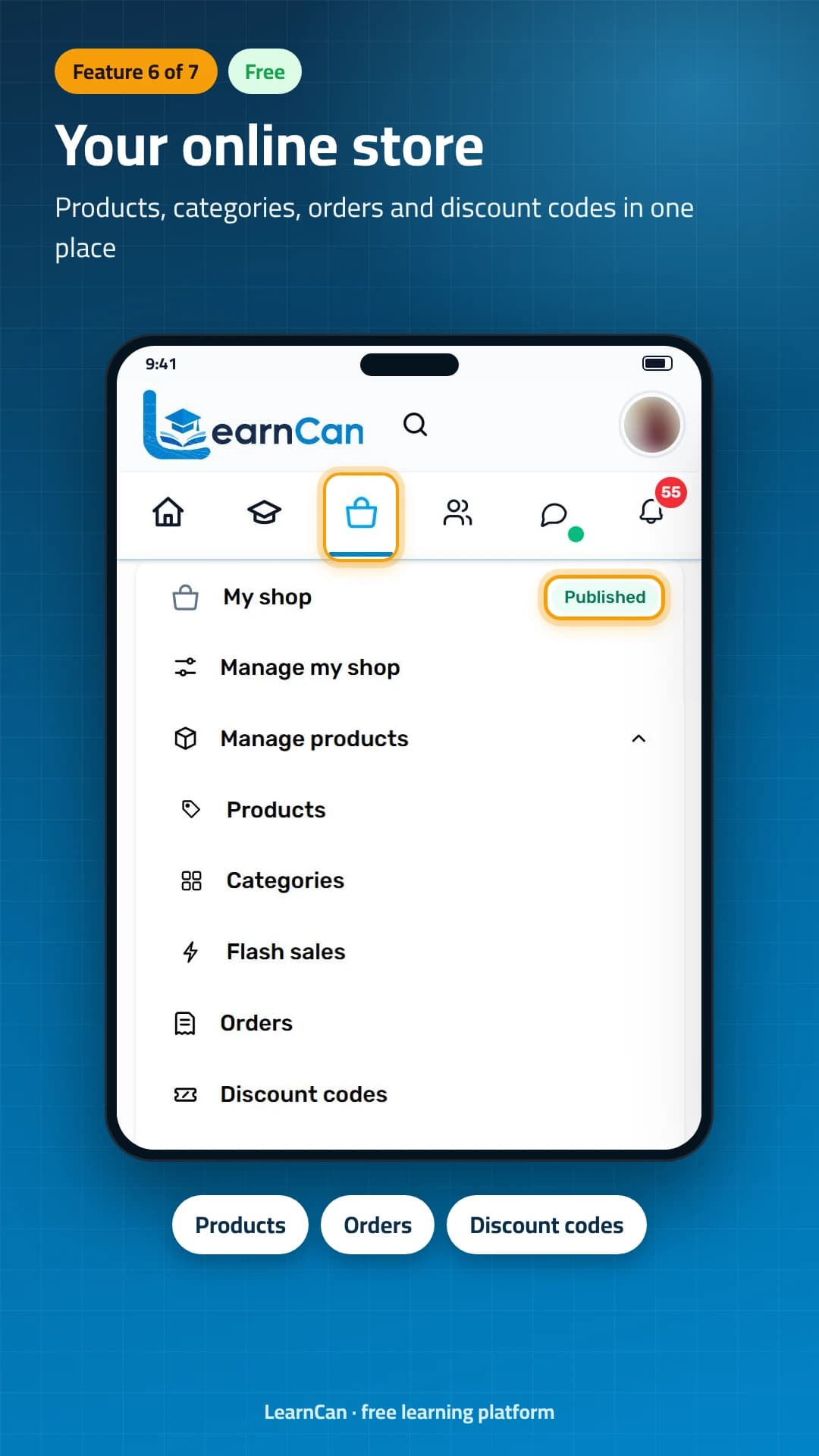
The bag icon takes you to “My shop”. This is where you run your whole store: details, products, categories, flash sales, orders, discount codes and a dashboard to follow your activity. Its status, such as “Published”, is shown at the top.
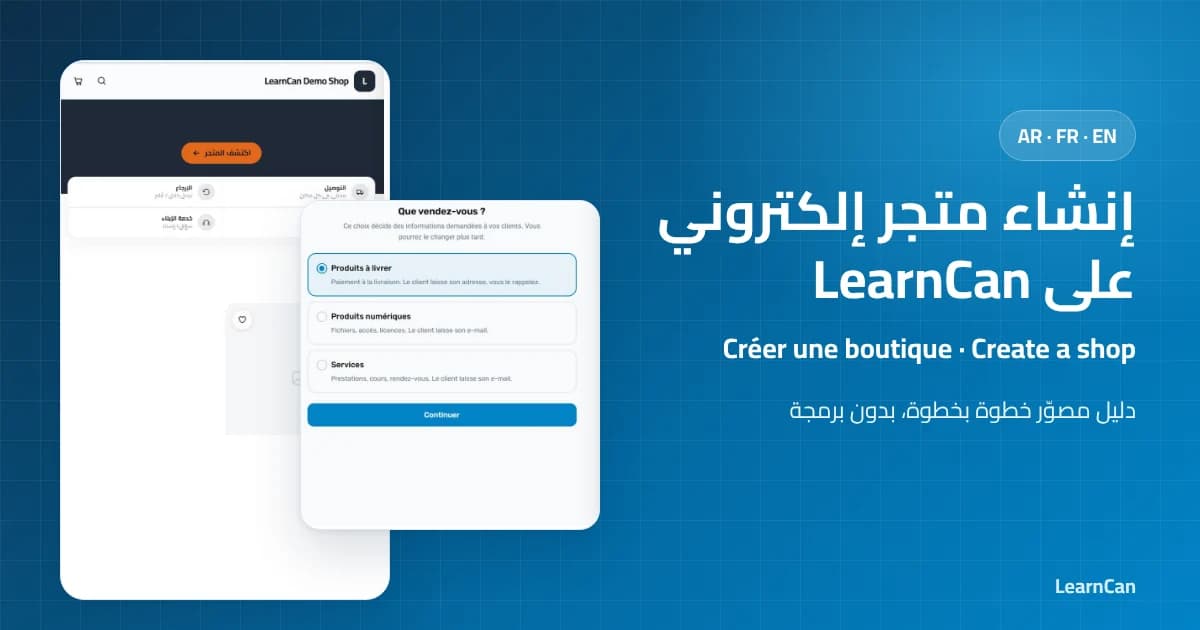
Every step is explained in our guide on how to create an online store on LearnCan.
7. Settings and privacy
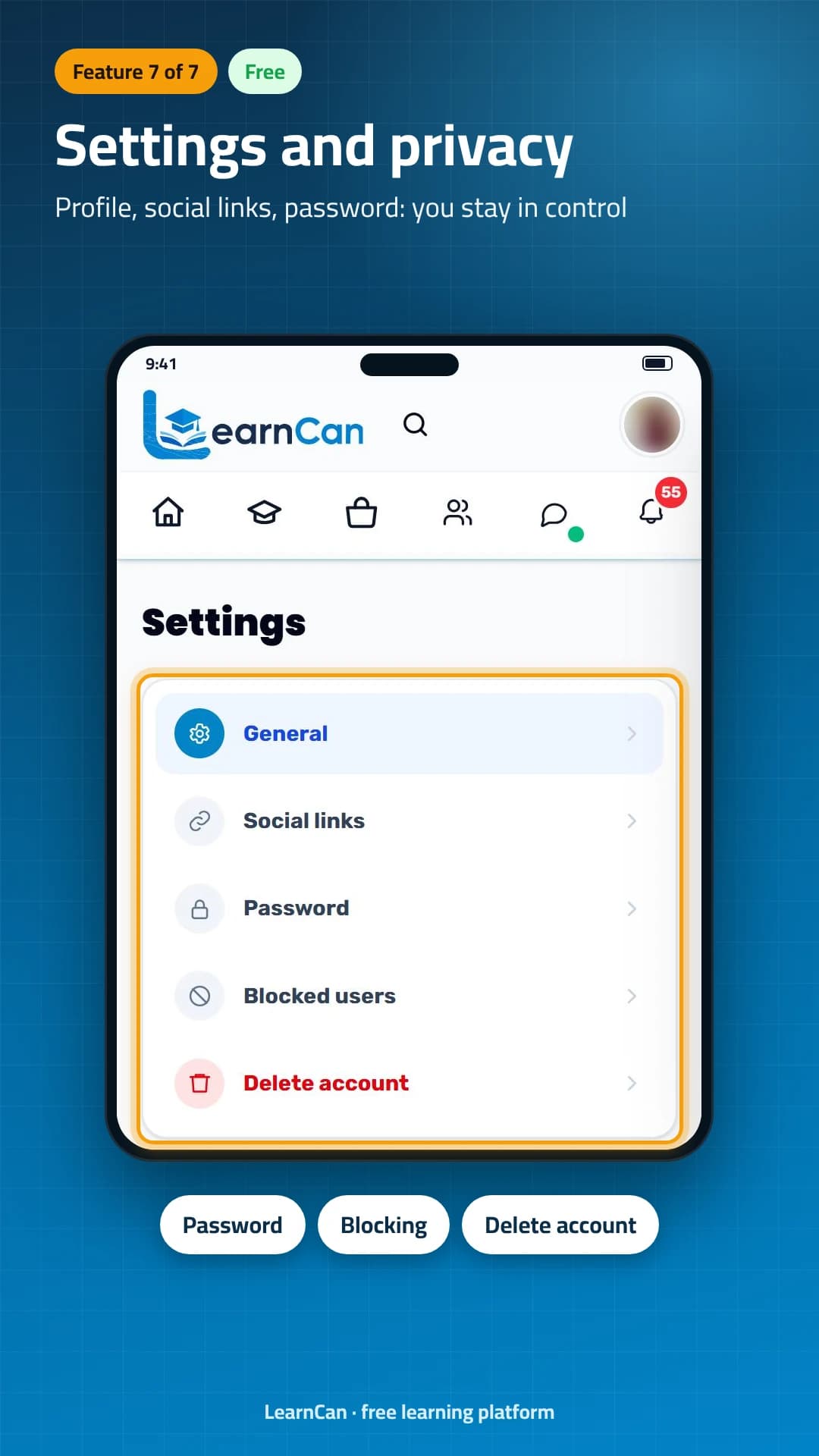
The Settings page gathers your whole account in one tidy list: “General” for your name, bio and city, “Social links”, “Password”, “Blocked users” and finally “Delete account” if you ever want to leave.
Extra touches that make it easy
- Three languages: the interface comes in Arabic, French and English, with the right reading direction for each.
- Messages: the chat icon opens your private conversations.
- Notifications: the bell shows new alerts such as comments and new followers.
- Search: the magnifying glass at the top gives quick access to content and members.
- Built for mobile: every picture in this article comes from the phone version.
How do you get started in three steps?
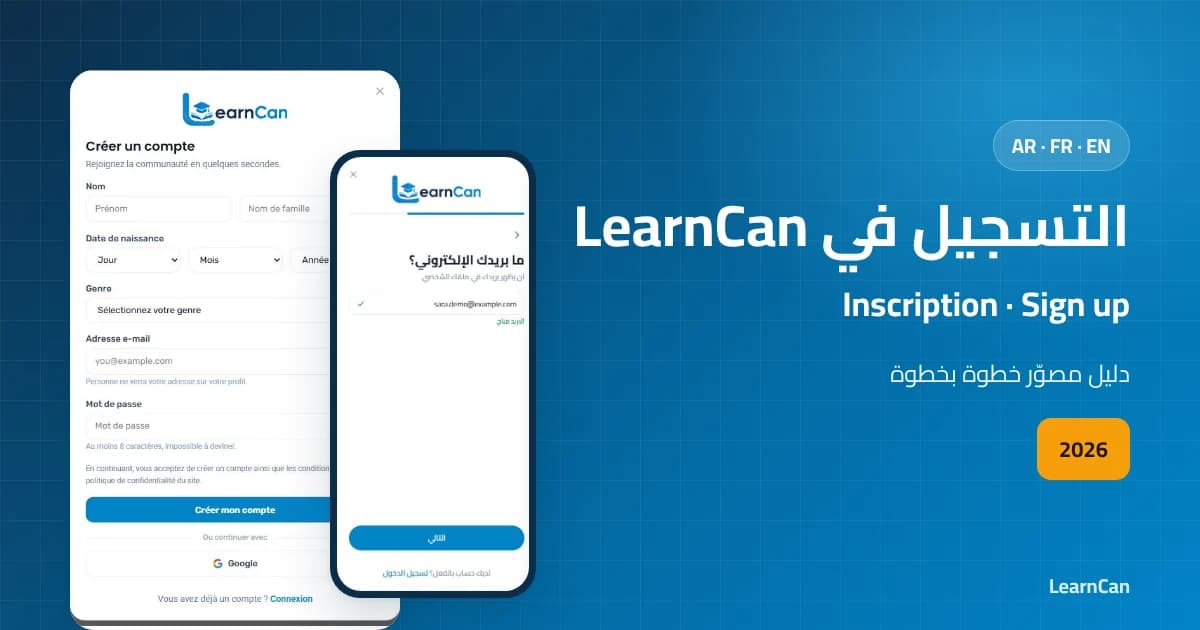
- Create your free account: follow the LearnCan sign up guide.
- Choose a course: filter by level and start the first lesson.
- Say hello: write your first post on the community wall.
Why learn on a community platform?
According to UNESCO, digital learning widens access to education when it stays open to everyone. Wikipedia’s article on online learning also stresses the value of interaction. That is the idea behind LearnCan: free content, a community that keeps you motivated and practical tools to apply what you learn.
Frequently asked questions
Here are short answers to the questions new members ask most often.
Do I need a bank card to sign up?
No. Signing up is free and asks for no payment method: an email address or a Google account is enough.
Can I use LearnCan on my phone only?
Yes. The site runs straight in your phone’s browser, as every screenshot in this guide shows.
Can I change the site language?
Yes. LearnCan is available in Arabic, French and English, and the address changes with the language.
Summary
The LearnCan features bring learning, community and selling together in one free place: courses by level, a player that tracks your progress, illustrated articles, a community wall, friends, an online store and settings that protect your privacy. Start with the courses page or browse the latest articles.